Contacts - Phone Calls
- 4.4
- Rating
- 50.00K
- Installs
- Free
- Price

 Analysis by App-foxy
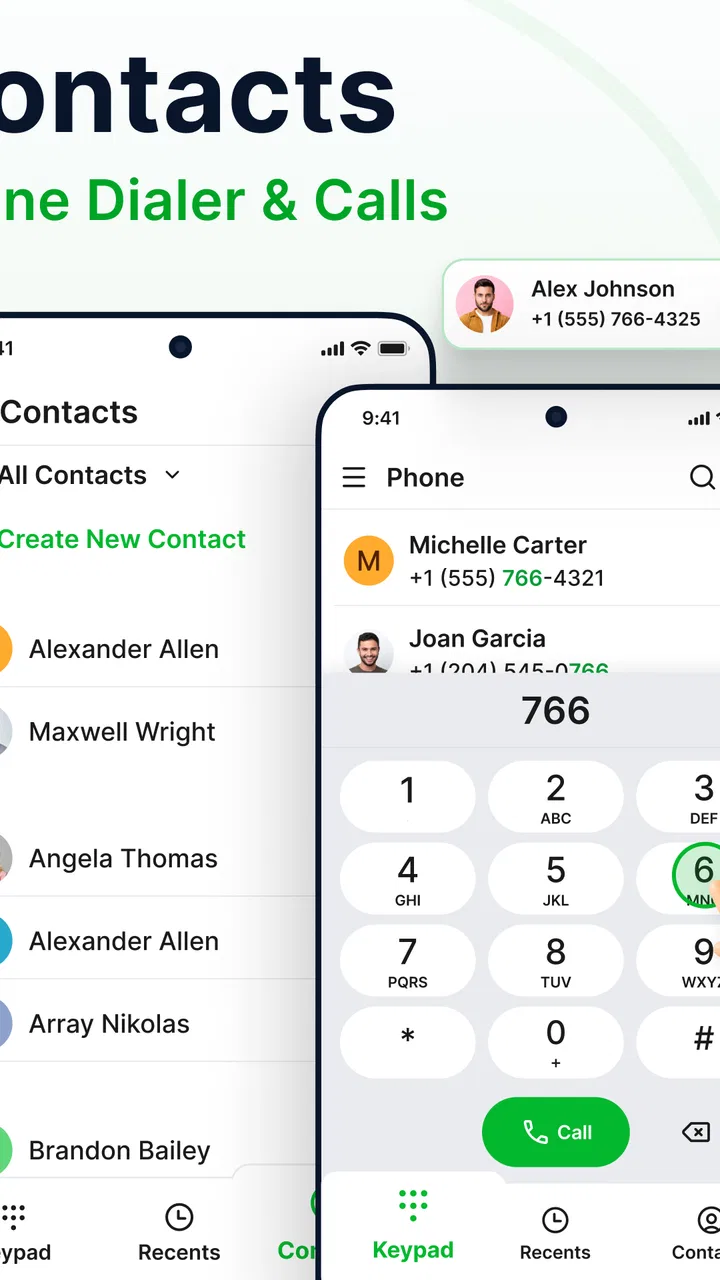
If you want a simpler way to handle everyday calling, Contacts - Phone Calls is worth a look. I approached it as a replacement for the basic phone screen rather than as a complete communication platform, and that distinction matters. Its focus is practical: making calls, finding people, managing contacts, replying quickly, and giving the calling experience a more personal visual style. After spending time with it, I found the app most appealing for people who want those tasks grouped together instead of scattered between the default dialer, address book, and messaging shortcuts.
The app is free and sits in the communication category. It comes from array infotech, carries a 4.4 average from around 344 ratings, and has passed 50K installs. It is rated for Everyone, so the presentation is approachable rather than aimed at a specialist audience. The current release is version 1.0.5, and it requires Android 10 or newer. Those details make it a fairly accessible option for people using a reasonably modern Android phone, although iPhone users should not assume the same experience is available on their platform.
What to expect when you open Contacts - Phone Calls
The first thing I noticed is that this is not trying to be a social network, a full texting service, or an all-in-one productivity suite. It is centered on the phone-call routine. The dialer is the place where you enter numbers, the contacts area helps you locate people, quick reply tools are intended to save time when you cannot answer, and call styles add a little visual choice to an otherwise familiar process.
You May Also Like

 Pandora - Music & Podcasts
Pandora’s Music Is Easy to Start, but Harder to Recover
Pandora’s strength is its low-effort path from a seed to a station. Its weak spot is how much confidence it asks you to place in connection, setup, and quiet recovery.

 8 Ball Pool
 Is Built on Rivalries, Rematches, and Routine
A close look at the rivalries, rematches, shared routines, and unanswered safety questions that turn a quick pool match into a persistent mobile community.

 Samsung Music
’s Quiet Strength Is Playing What You Already Own
Its reach comes less from spectacle than from dependable access to a personal library. That simplicity is both the app’s strongest retention engine and its ceiling.

 AccuWeather: Weather Radar
AccuWeather Review: A Quick, Clear Forecast for Everyday Decisions
For everyday plans, the best forecast is the one you can understand quickly. AccuWeather makes rain timing, radar, and local conditions easy to act on, with a few trade-offs.

 Hill Climb Racing
Why Hill Climb Racing Still Turns Crashes Into One More Run
A tiny car, a bumpy hill and one more upgrade: Hill Climb Racing keeps resurfacing because its simple chaos makes every near-miss feel personal.

 AliExpress - Shopping App
AliExpress Makes Global Shopping Feel Personal, but Shoppers Bear the Risk
AliExpress turns a global marketplace into a pocket-sized discovery engine. Its reach is useful, its shopping loop compelling, and its trade-offs easy to miss.
More From Our News Desk
View All News


That narrow focus is one of its strengths. A phone app becomes frustrating when every action is buried under unrelated extras. Here, the useful question is usually straightforward: do I want to call someone, find a saved contact, respond quickly, or adjust how incoming calls look? If that matches your daily needs, the layout feels easier to understand than an app that tries to cover every form of communication.
I would not install it expecting advanced call-center functions, a replacement for every messaging app, or a dramatic change to the quality of the phone network itself. The app can organize the way you interact with calling, but it cannot improve a weak signal or change what your mobile provider supports. That is an important expectation to set before making it your main calling interface.
For a first-time user, the most useful mental model is to treat it as a front door for calls and contacts. You do not need to learn a complicated system before getting value from it. The meaningful first success is simply locating a person or entering a number and completing a call without having to jump between several screens.
Who will feel at home with it
I think it suits people who call family members, friends, customers, or colleagues regularly and want faster access to those conversations. It can also help someone who dislikes the visual design of a phone’s built-in dialer and wants more control over the call screen. The quick reply option is particularly relevant for busy moments: driving, sitting in a meeting, carrying groceries, or dealing with another call.
It is less convincing for someone who rarely makes voice calls and already finds the default phone app perfectly clear. Switching dialers introduces a small learning curve, and there is little reason to accept that change if your existing setup already handles your contacts exactly as you want. I would also be cautious about recommending it to people who need a highly specialized business phone workflow, because the app’s appeal is convenience rather than deep enterprise management.
Getting through the first setup without guesswork
My advice is to begin with one simple goal instead of changing every calling preference immediately. Open the contacts area first and look for a familiar person. If the person is already available, try calling them before exploring styles or other options. This gives you a quick test of the central experience and prevents the setup process from feeling larger than it is.
If a contact does not appear where you expect, check whether you are searching for the saved name or entering the phone number directly. This is a small but useful distinction. A dialer is designed for immediate number entry, while contact management depends on the information already organized on the device. When the two paths are treated as interchangeable, a missing contact can look like an app problem even when it is simply a search or saving issue.
I would then spend a minute reviewing the visual call styles. This is not just decoration if you receive calls in different situations. A clear, familiar presentation can help you recognize what is happening at a glance, while a busier style may be less comfortable when you need to answer quickly. My practical tip is to choose the easiest design to read first and experiment later. A stylish screen is not useful if it slows down the decision to answer.
The quick reply feature deserves an early test as well. Rather than waiting for a real interruption, imagine a normal situation in which you cannot speak and decide which short response would sound natural in your own voice. The best reply is not necessarily the most formal one; it is the message you would genuinely send while occupied. Setting that expectation early makes the tool more useful than treating it as a decorative extra.
Because this app works with calling and contacts, I would also pay attention to the system prompts shown during setup and read them before continuing. These prompts are part of the phone’s normal control over communication features. If you are uncomfortable with a requested access, stop and consider whether you want to use a third-party dialer at all. I would not rush through this stage simply to reach the home screen.
The quickest route to a first successful call
For most new users, the smoothest route is to search for a contact you call often. If the name appears, open it and use the call action. This is more reassuring than testing with an unfamiliar number because you can confirm that the person, label, and intended number look correct before starting the call.
If you prefer to dial manually, use the keypad and pause briefly before confirming. That small pause gives you a chance to catch a mistyped digit, especially when calling a number that is not saved. Once the call connects, the app has already demonstrated its main value: it has put the dialer and contact workflow in one place without asking you to understand every setting first.
A realistic example is a parent leaving work and needing to call home while carrying a bag. With a contact already saved, the useful sequence is short: open the app, find the household contact, start the call, and use a quick reply later if another call arrives at the wrong moment. The benefit is not that any single step is revolutionary. It is that the routine can feel less fragmented when the tools are presented together.
After that first call, try the same contact through the recent-call area if it is available in your workflow. This helps you learn whether you prefer searching by name or returning to people you have contacted recently. I find that this kind of personal habit matters more than a long list of options. The right calling app is the one that matches how you actually look for people.
Small habits that make the app more useful
One useful habit is to separate “find quickly” contacts from the rest of your address book in your own mind. Contacts - Phone Calls can bring calling and contact access together, but it cannot decide which people matter most in your daily routine. Identifying those people helps you use the app with fewer searches and reduces the temptation to customize everything at once.
Another practical approach is to keep quick replies short and situation-specific. A response that says you are busy and will call later is more versatile than a long explanation. If you create several messages that mean almost the same thing, choosing one can become slower than simply replying yourself. I would keep only the responses you can imagine using during a real interruption.
Call styles are best treated as part of recognition and comfort, not as a reason to sacrifice clarity. If you share a phone with someone else or often answer in bright outdoor light, a straightforward presentation may be more useful than an elaborate one. Conversely, if the default phone screen feels dull or difficult to distinguish from other alerts, a different style may make incoming calls easier for you to notice.
Common confusion and the trade-offs I noticed
The biggest possible confusion is assuming that a redesigned calling interface changes the underlying phone service. It does not turn a voice call into an internet call, and it should not be judged by the strength of the connection alone. If a call drops, the sensible first checks are still the network and the phone itself. The app’s role is the interface around that call.
Another point to understand is the difference between contact management and contact discovery. The app can help you work with contacts, but it is not a magic source of unknown phone numbers. If someone is not saved, you may need to enter the number manually or add it yourself. This is a normal limitation of a privacy-conscious address book, not a missing feature I would hold against the app.
People may also wonder whether the quick reply is a full messaging replacement. I would not use it that way. Its value is in handling the immediate “I cannot answer now” moment. If you need long conversations, attachments, group discussions, or a searchable message history, a dedicated messaging service remains the better tool. The quick reply is a bridge between a missed call and a later conversation.
The same distinction applies to call styles. They can change the way the call screen feels, but they do not replace the need to pay attention while answering. If you prefer a minimal, distraction-free phone, too much visual customization may work against you. I found the feature more useful when approached as a way to improve recognition than as a collection of effects.
There is also a trade-off in moving away from the phone manufacturer’s default dialer. The built-in option may be more deeply integrated with the rest of the device, while a separate app may offer a presentation that feels more comfortable. Before committing, I would make a few ordinary calls, locate a couple of contacts, and test a quick reply. If those basic actions feel slower than before, the visual appeal is probably not enough reason to switch.
Where it compares well, and where another choice wins
Compared with a basic system dialer, Contacts - Phone Calls has a clearer identity. It brings contact access, calling, quick responses, and call presentation into one focused experience. That makes it attractive to someone whose complaint is not that the phone cannot place calls, but that the everyday process feels plain or scattered.
Compared with a full communication platform, however, it is intentionally narrower. Apps built for internet calling, team conversations, or large message histories will usually be better for users whose main activity is chatting rather than making ordinary phone calls. I would choose this app for a call-first routine, not for replacing every communication tool on my phone.
Compared with a contact manager that concentrates on organizing address-book details, this app puts the next action closer to the person’s name: call, respond, or adjust the calling presentation. That is convenient for frequent callers. Someone who mainly needs duplicate cleanup, detailed contact records, or extensive address-book administration may prefer a dedicated contact solution instead.
My honest limitation is that its usefulness depends heavily on personal preference. If you want a straightforward dialer with no extra decisions, the additional styles and quick-reply choices may feel unnecessary. If you enjoy shaping the call experience and often need to respond when you cannot speak, those same additions can save small amounts of time repeatedly. The difference is not theoretical; it becomes clear after a few days of normal use.
Who should install it and what to do next
I would recommend Contacts - Phone Calls to a first-time user who wants a friendlier call routine without paying for the app. Start with one familiar contact, complete one call, and then configure one quick reply that reflects how you actually communicate. That sequence gives you a meaningful result quickly and lets you decide whether the combined workflow feels natural.
After the first successful call, spend time on consistency rather than quantity. Choose a call style that is easy to recognize, keep only useful quick replies, and learn whether you reach people faster through contact search or recent calls. These choices are more valuable than exploring every visual option. They turn the app from something you installed into a tool that fits your own habits.
I would skip it if your current dialer already feels perfect, if you rarely make phone calls, or if your main need is a complete messaging and collaboration service. I would also avoid changing your primary calling workflow during an especially busy period; test it calmly first so you can notice whether contact access and answering feel reliable for you.
For my own recommendation, the strongest reason to try it is its focused combination of ordinary calling tasks. It does not need to reinvent the phone to be useful. By placing the dialer, contacts, quick replies, and call styles around the same routine, it offers a more deliberate alternative to a plain default screen. The best way to judge it is to complete one real call, prepare one genuinely useful quick reply, and see whether the next call feels easier.
That is where the app makes its case. It is free, approachable, and specific about the problem it wants to solve: making everyday phone calls and contact handling feel more convenient. In my experience, it is a good fit for people who want modest control over that experience, while users seeking a full communications suite or advanced contact administration should look elsewhere. For a call-first Android setup, though, Contacts - Phone Calls is a sensible app to test rather than dismiss after a quick glance.
FAQs for Contacts - Phone Calls
01What is Contacts - Phone Calls, and what can I use it for?
Contacts - Phone Calls is a communication app designed to help you manage saved contacts and place phone calls from one convenient interface. After reviewing its main functions, it appears most useful for users who want quick access to contact details, a familiar dialer experience, and simpler navigation between contacts and calling tools. Its exact features may vary depending on your device and operating system.
02Does Contacts - Phone Calls require access to my contacts and phone functions?
Yes, an app focused on contacts and phone calls normally needs permission to view your contacts and access phone-related functions. These permissions allow it to display saved names and numbers, start calls, and possibly manage call history. Before accepting, review the permission request carefully. You can usually deny or revoke access later through your Android or iOS privacy settings, although some features may stop working.
03Can I make calls directly from Contacts - Phone Calls?
The main purpose of Contacts - Phone Calls is to make calling a contact faster and more convenient. You can generally select a saved person and tap the call option to begin a regular phone call through your device’s mobile network. Call charges, carrier restrictions, roaming costs, and availability depend on your phone plan. The app should not be assumed to provide free internet calling unless clearly stated.
04Is Contacts - Phone Calls safe to use for storing personal contact information?
Contacts - Phone Calls works with sensitive information such as names, telephone numbers, and possibly call-related data, so privacy should be considered before installation. Check the app’s permissions, privacy policy, developer information, and store reviews before downloading. Avoid granting unrelated permissions, and keep your operating system updated. If privacy is especially important, regularly review which apps can access your contacts.
05Is Contacts - Phone Calls free, and is it compatible with my device?
The download may be free, but the available version, advertisements, optional purchases, and supported features can differ between Android and iOS. Compatibility also depends on your device model and operating-system version. Before installing, check the official app-store listing for the latest requirements, pricing details, update history, and user reviews. Remember that making standard calls may still use your carrier’s minutes or incur normal charges.
Pros
- Simple interface makes contacts and calls easy to manage.
- Quick access to recent calls and frequently used contacts.
- Supports contact search by name or phone number.
- Useful caller information appears before answering calls.
- Contact details can be edited directly within the app.
Cons
- Some features may depend on your phone manufacturer or Android version.
- Duplicate contacts can require manual cleanup.
- Call-related permissions may concern privacy-conscious users.
- Limited customization compared with advanced dialer apps.
- Performance may vary on older or less powerful devices.

Contacts - Phone Calls
Gallery